GitHub-backed Code Ocean capsules
Why GitHub backing matters
Linking a Code Ocean capsule to a GitHub repository provides an additional venue for sharing your code, environment configuration, and links to your data beyond Code Ocean itself. It also integrates your capsule into standard software development workflows — version history, code review, and discoverability via GitHub search — and makes it easier for others to find, cite, and build on your work.
Creating a new capsule backed by a GitHub repo
The easiest way to ensure your capsule is GitHub-backed is to set this up at creation time. Code Ocean does not allow you to add GitHub backing to an existing capsule after it has been created (see this issue), so getting this right from the start avoids the more involved migration process described below.
Rather than creating a GitHub repo from scratch, you should start from the aind-capsule-template. This template provides the code/ and environment/ directory structure that Code Ocean requires. Creating a repo from scratch risks producing a layout that is incompatible with Code Ocean.
Steps:
Go to https://github.com/AllenNeuralDynamics/aind-capsule-template and click the green Use this template button, then select Create a new repository.
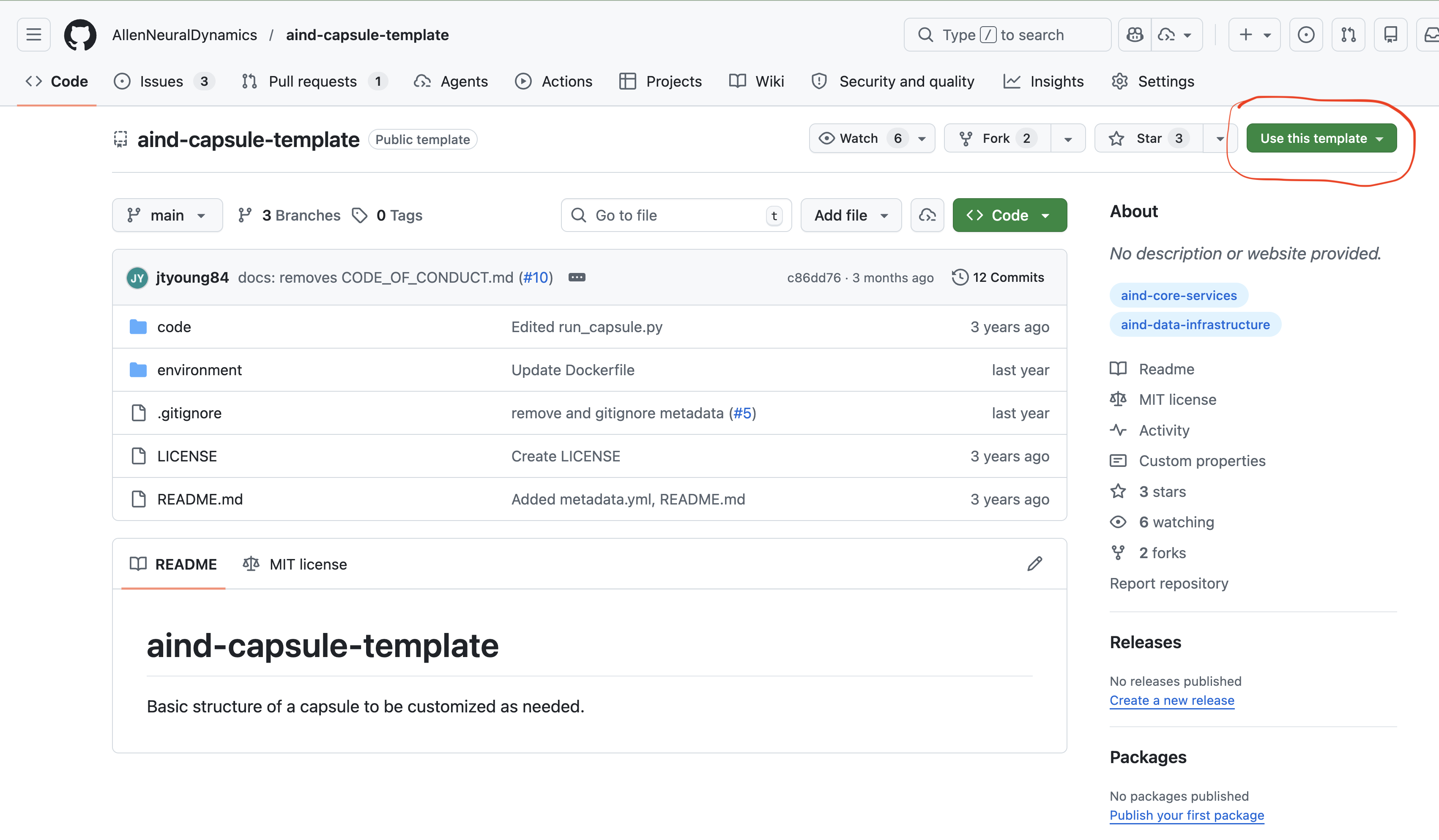
Under Owner, select AllenNeuralDynamics. Give the repo a name and set visibility.
Click Create repository.
Copy the HTTPS clone URL from the green Code button (e.g.,
https://github.com/AllenNeuralDynamics/REPO_NAME.git).Go to https://codeocean.allenneuraldynamics.org/dashboard, click New Capsule, and select Clone From Git.
Paste the URL from step 4 and click Clone.
Your capsule is now linked to your GitHub repo. Any changes committed and synced in Code Ocean will be reflected in the repo.
Migrating an existing capsule to GitHub backing
If your capsule was created without GitHub backing, you cannot add it retroactively. Instead, you must import your capsule’s code into a new GitHub repository, create a new Code Ocean capsule cloned from that repo, and deprecate the original capsule.
Broadly, the steps are:
A) Create a new GitHub repo from your existing capsule.
B) Create a new capsule backed by this new repo.
C) Create a new reproducible run and release from the new capsule.
D) Deprecate the old capsule.
From that point forward, all changes in the new capsule will automatically sync with the GitHub repo.
A) Create a GitHub repo from your existing capsule
Click Capsule > Clone via Git… from the menu near the top of the Code Ocean interface.
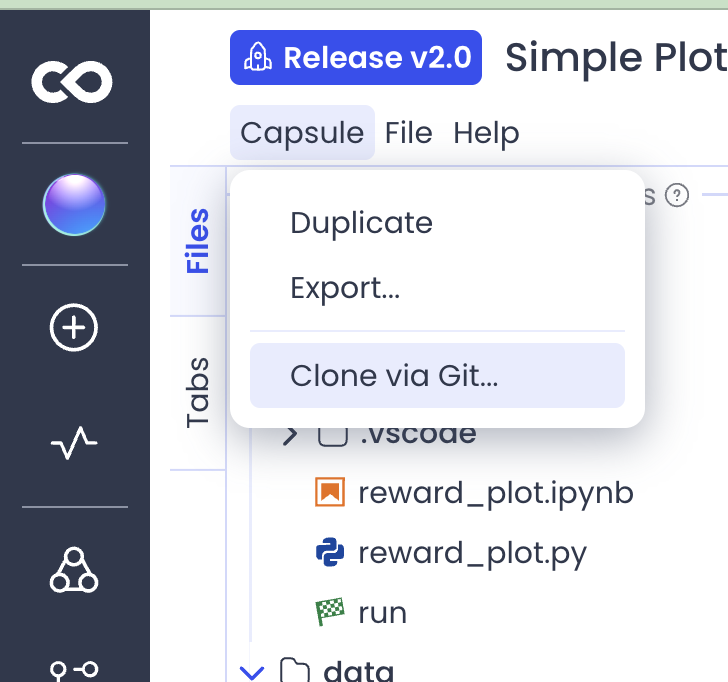
Copy the URL under Clone using this URL: (it will look something like
https://codeocean.allenneuraldynamics.org/capsule-XXXXXXX.git).In a new tab, go to https://github.com/AllenNeuralDynamics.
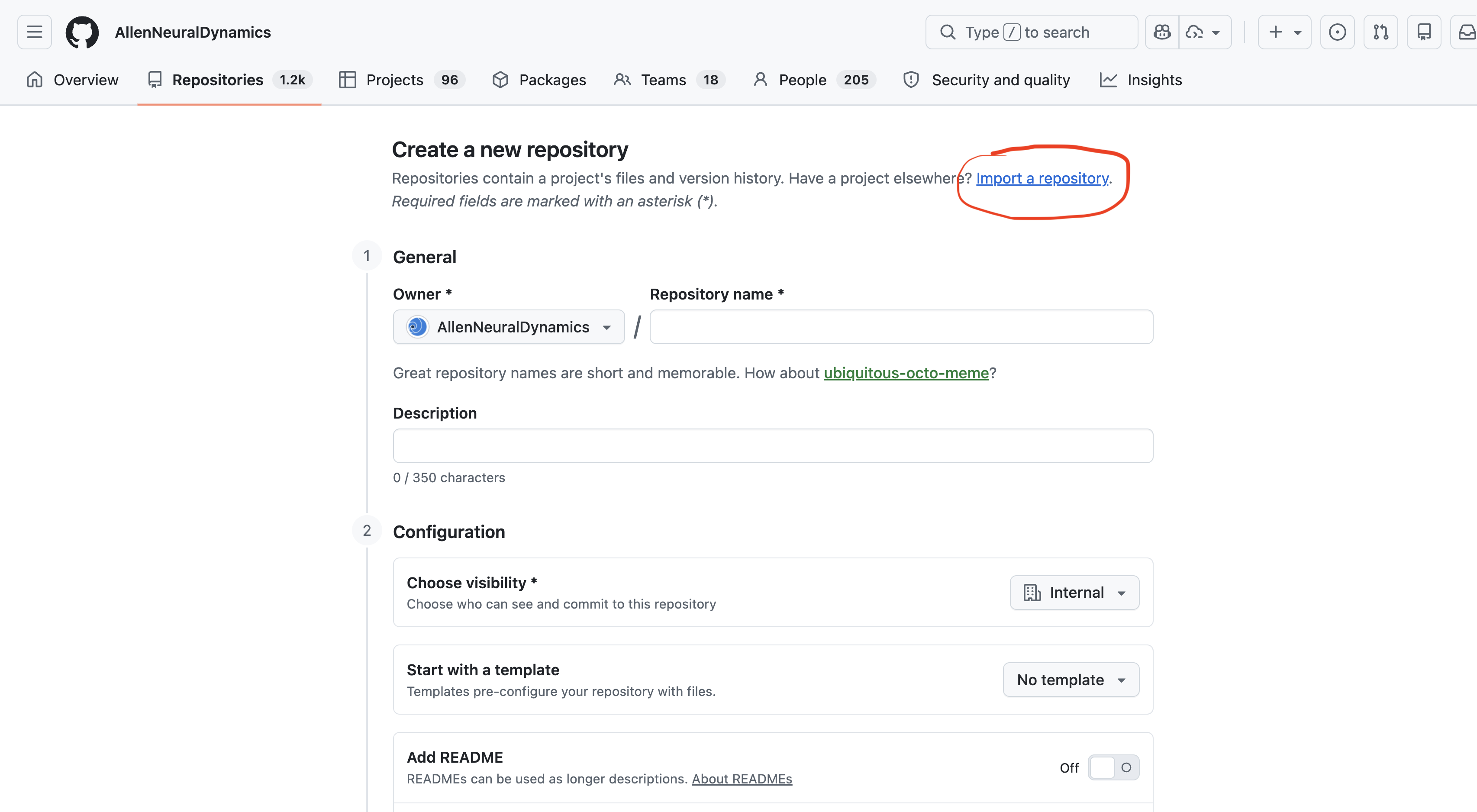
Click the green New button.
Click Import a repository near the top.
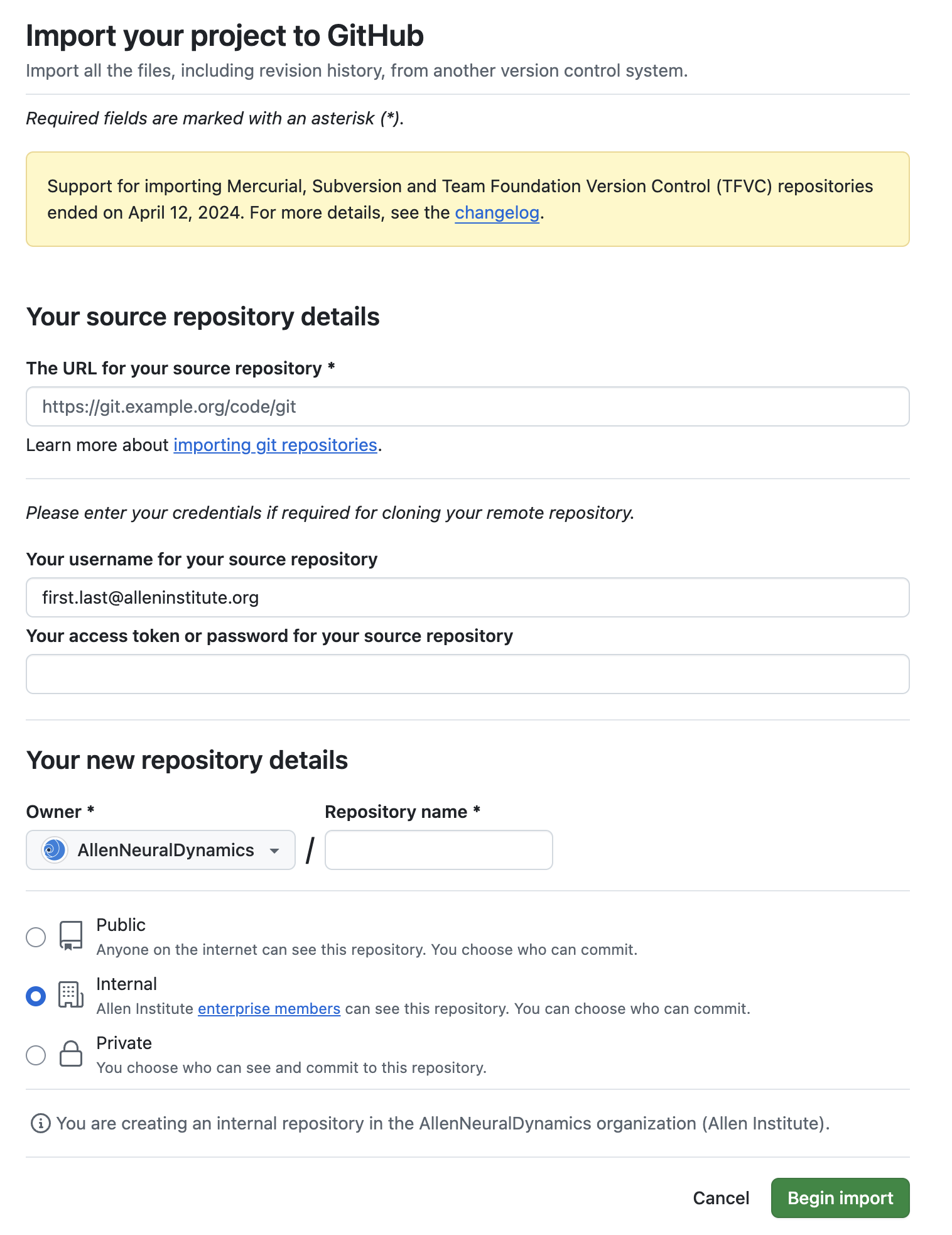
Paste the URL from step 2 into the The URL for your source repository field.
Enter your full Allen email address in the Your username for your source repository field.
Switch back to your Code Ocean tab. If there is a Generate a user token option, create a token and copy it.
Paste the token into the Your access token or password for your source repository field on GitHub. If Code Ocean did not offer a token, leave this field blank.
Under Choose an owner, select AllenNeuralDynamics.
Under Repository name, enter a name matching your capsule name.
Set visibility to either Internal or Public. You can change this later. But note that this must ultimately be set to Public to make the capsule repo visible to the outside world.
Click Begin Import. This can take several minutes to complete. (If this step fails, see Troubleshooting: import credentials.)
Once complete, click the link to go to your new repo.
B) Create a new GitHub-backed capsule
Click the green Code button on your new GitHub repo and copy the HTTPS URL (e.g.,
https://github.com/AllenNeuralDynamics/REPO_NAME.git).Go to https://codeocean.allenneuraldynamics.org/dashboard, click New Capsule, and select Clone From Git.
Paste the URL from step 15 and click Clone. This creates your new GitHub-backed capsule.
Edit the README of the new capsule to include a link to the GitHub repo.
Commit your changes and click Sync with GitHub.
Go to your GitHub repo and verify that the README changes are visible there.
C) Create a reproducible run and release
Create a new reproducible run and release from the new capsule.
D) Deprecate the old capsule
Add a note to the original capsule’s README stating that it is deprecated, and include a link to the new capsule. This is important so that you don’t inadvertently continue working on the original capsule.
Consider renaming the original capsule to make its status clear (e.g., “My Capsule Title (deprecated)”).
Troubleshooting
Import fails due to incorrect credentials
If GitHub reports an error after clicking Begin Import in step 13, the most likely cause is incorrect credentials. Check the following:
Username: Use your full Allen Institute email address (e.g.,
firstname.lastname@alleninstitute.org), not your GitHub username.Token: Even if you did not see a Generate a user token option in step 8, you may need to copy and paste your CO token into the password field (not your GitHub or Allen Institute password). You may need to generate a new token or copy an existing one manually, in the CO user settings. Note that some capsules may import successfully without a token (typically public ones), while private capsules will fail without it.